<?xml version="1.0" encoding="UTF-8" ?>
<!DOCTYPE html PUBLIC "-//W3C//DTD XHTML 1.0 Strict//EN" "http://www.w3.org/TR/xhtml1/DTD/xhtml1-strict.dtd">
<html expr:dir='data:blog.languageDirection' xmlns='http://www.w3.org/1999/xhtml' xmlns:b='http://www.google.com/2005/gml/b' xmlns:data='http://www.google.com/2005/gml/data' xmlns:expr='http://www.google.com/2005/gml/expr'>
<head>
<b:include data='blog' name='all-head-content'/>
<title><data:blog.pageTitle/></title>
<b:skin><![CDATA[
/* ************ START OF CSS STYLING ************ */
/* -----------------------------------------------------------------------
Blogger Template Design: Noblarum
Design by: Ourblogtemplates.com
Terms of Use: Free template with credit linked to Ourblogtemplates.com
----------------------------------------------------------------------- */
/* Variable definitions
========================
<Variable name="bodybgColor" description="Body Background Color"
type="color" default="#FFBBE8" value="#b3b3b3">
<Variable name="blogframeColor" description="Blog Background Color"
type="color" default="#800040" value="#b3b3b3">
<Variable name="blogBorderColor" description="Blog Border Color"
type="color" default="#800040" value="#b3b3b3">
<Variable name="headerbgColor" description="Header Background Color"
type="color" default="#ffffff" value="#FBE319">
<Variable name="headerBorderColor" description="Header Border Color"
type="color" default="#800040" value="#FBE319">
<Variable name="blogTitleColor" description="Blog Title Color"
type="color" default="#800040" value="#FBE319">
<Variable name="blogDescriptionColor" description="Blog Description Color"
type="color" default="#800040" value="#cccccc">
<Variable name="linkbarbgColor" description="Linkbar Background Color"
type="color" default="#C94093" value="#000000">
<Variable name="linkbarmainBorderColor" description="Linkbar Main Border Color"
type="color" default="#C94093" value="#FBE319">
<Variable name="linkbarBorderColor" description="Linkbar Border Color"
type="color" default="#9D1961" value="#000000">
<Variable name="linkbarTextColor" description="Linkbar Text Color"
type="color" default="#ffffff" value="#FBE319">
<Variable name="linkbarHoverBgColor" description="Linkbar Hover Background Color"
type="color" default="#ffffff" value="#FBE319">
<Variable name="linkbarHoverTextColor" description="Linkbar Hover Text Color"
type="color" default="#9D1961" value="#000000">
<Variable name="middlebarbgColor" description="Middlebar Background Color"
type="color" default="#ffffff" value="#ffffff">
<Variable name="contentbgColor" description="Content Background Color"
type="color" default="#ffffff" value="#FBE319">
<Variable name="contentBorderColor" description="Content Border Color"
type="color" default="#9D1961" value="#FBE319">
<Variable name="postbgColor" description="Post Background Color"
type="color" default="#ffffff" value="#f3f3f3">
<Variable name="postBorderColor" description="Post Border Color"
type="color" default="#ffffff" value="#f3f3f3">
<Variable name="postTitleColor" description="Post Title Color"
type="color" default="#000000" value="#000000">
<Variable name="posttitlebgColor" description="Post Title Background Color"
type="color" default="#000000" value="#ffffff">
<Variable name="posttitleBorderColor" description="Post Title Border Color"
type="color" default="#000000" value="#f3f3f3">
<Variable name="dateHeaderColor" description="Date Header Color"
type="color" default="#000000" value="#b3b3b3">
<Variable name="textColor" description="Text Color"
type="color" default="#191919" value="#808080">
<Variable name="mainLinkColor" description="Main Link Color"
type="color" default="#333333" value="#808080">
<Variable name="mainHoverLinkColor" description="Main Hover Link Color"
type="color" default="#9D1961" value="#000000">
<Variable name="mainVisitedLinkColor" description="Main Visited Link Color"
type="color" default="#9D1961" value="#808080">
<Variable name="blockquotebgColor" description="Blockquote Background Color"
type="color" default="#191919" value="#f3f3f3">
<Variable name="blockquoteBorderColor" description="Blockquote Border Color"
type="color" default="#191919" value="#f3f3f3">
<Variable name="blockQuoteColor" description="Blockquote Color"
type="color" default="#191919" value="#808080">
<Variable name="codeTextColor" description="Code Text Color"
type="color" default="#660000" value="#808080">
<Variable name="imagebgColor" description="Photo Background Color"
type="color" default="#f5f5f5" value="#ffffff">
<Variable name="imageBorderColor" description="Photo Border Color"
type="color" default="#f5f5f5" value="#ffffff">
<Variable name="postfooterBgColor" description="Postfooter Background Color"
type="color" default="#b8659C" value="#eeeeee">
<Variable name="postfooterBorderColor" description="Postfooter Border Color"
type="color" default="#b8659C" value="#ffffff">
<Variable name="postfooterTextColor" description="Postfooter Text Color"
type="color" default="#b8659C" value="#b3b3b3">
<Variable name="postfooterLinkColor" description="Postfooter Link Color"
type="color" default="#b8659C" value="#b3b3b3">
<Variable name="commentTabLinkColor" description="Comment Tab Link Color"
type="color" default="#b8659C" value="#b3b3b3">
<Variable name="feedlinksColor" description="Feed Links Color"
type="color" default="#9D1961" value="#b3b3b3">
<Variable name="sidebar1bgColor" description="Sidebar1 Background Color"
type="color" default="#FFBBE8" value="#f3f3f3">
<Variable name="sidebar1BorderColor" description="Sidebar1 Border Color"
type="color" default="#C94093" value="#e6e6e6">
<Variable name="sidebar1HeaderBgColor" description="Sidebar1 Header Background Color"
type="color" default="#ffffff" value="#eeeeee">
<Variable name="sidebar1HeaderBorderColor" description="Sidebar1 Header Border Color"
type="color" default="#C94093" value="#FBE319">
<Variable name="sidebar1HeaderColor" description="Sidebar1 Header Color"
type="color" default="#000000" value="#333333">
<Variable name="sidebar1TextColor" description="Sidebar1 Text Color"
type="color" default="#9D1961" value="#808080">
<Variable name="sidebar1LinkColor" description="Sidebar1 Link Color"
type="color" default="#9D1961" value="#808080">
<Variable name="sidebar1HoverLinkColor" description="Sidebar1 Hover Link Color"
type="color" default="#000000" value="#0033FF">
<Variable name="sidebar1VisitedLinkColor" description="Sidebar1 Visited Link Color"
type="color" default="#000000" value="#808080">
<Variable name="sidebarListLineColor" description="Sidebar List Line Color"
type="color" default="#000000" value="#e6e6e6">
<Variable name="profileBorderColor" description="Profile Border Color"
type="color" default="#000000" value="#ffffff">
<Variable name="lowerbarbgColor" description="Lowerbar Background Color"
type="color" default="#ffffff" value="#000000">
<Variable name="lowerbarBorderColor" description="Lowerbar Border Color"
type="color" default="#C94093" value="#FBE319">
<Variable name="sublowerbarbgColor" description="Sublowerbar Background Color"
type="color" default="#ffffff" value="#000000">
<Variable name="sublowerbarBorderColor" description="Sublowerbar Border Color"
type="color" default="#C94093" value="#333333">
<Variable name="lowerbarHeaderColor" description="Lowerbar Header Color"
type="color" default="#000000" value="#b3b3b3">
<Variable name="lowerbarTitleBgColor" description="Lowerbar Header Background Color"
type="color" default="#C94093" value="#191919">
<Variable name="lowerbarHeaderBorderColor" description="Lowerbar Header Border Color"
type="color" default="#C94093" value="#333333">
<Variable name="lowerbarTextColor" description="Lowerbar Text Color"
type="color" default="#9D1961" value="#808080">
<Variable name="lowerbarLinkColor" description="Lowerbar Link Color"
type="color" default="#9D1961" value="#808080">
<Variable name="lowerbarHoverLinkColor" description="Lowerbar Hover Link Color"
type="color" default="#000000" value="#b3b3b3">
<Variable name="lowerbarVisitedLinkColor" description="Lowerbar Visited Link Color"
type="color" default="#000000" value="#808080">
<Variable name="lowerbarListLineColor" description="Lowerbar List Line Color"
type="color" default="#000000" value="#d5cDc3">
<Variable name="commentbgColor" description="Comment Background Color"
type="color" default="#9D1961" value="#ffffff">
<Variable name="commentBorderColor" description="Comment Border Color"
type="color" default="#C94093" value="#ffffff">
<Variable name="commentboxBgColor" description="Comment Box Background Color"
type="color" default="#9D1961" value="#f8f8f8">
<Variable name="commentboxBorderColor" description="Comment Box Border Color"
type="color" default="#C94093" value="#FBE319">
<Variable name="commentTitleColor" description="Comment Header Color"
type="color" default="#000000" value="#000000">
<Variable name="commentauthorBgColor" description="Comment Author Background Color"
type="color" default="#9D1961" value="#000000">
<Variable name="commentauthorColor" description="Comment Author Color"
type="color" default="#9D1961" value="#FBE319">
<Variable name="commentTimeStampColor" description="Comment Timestamp Color"
type="color" default="#C94093" value="#cccccc">
<Variable name="commentTextColor" description="Comment Text Color"
type="color" default="#4c4c4c" value="#808080">
<Variable name="footerbgColor" description="Footer Background Color"
type="color" default="#ffffff" value="#FBE319">
<Variable name="footerBorderColor" description="Footer Border Color"
type="color" default="#000000" value="#FBE319">
<Variable name="footerHeaderColor" description="Footer Header Color"
type="color" default="#000000" value="#000000">
<Variable name="footerTextColor" description="Footer Text Color"
type="color" default="#C94093" value="#000000">
<Variable name="footerLinkColor" description="Footer Link Color"
type="color" default="#C94093" value="#000000">
<Variable name="footerHoverLinkColor" description="Footer Hover Link Color"
type="color" default="#C94093" value="#4c4c4c">
<Variable name="footerVisitedLinkColor" description="Footer Visited Link Color"
type="color" default="#C94093" value="#000000">
<Variable name="blogTitleFont" description="Blog Title Font"
type="font"
default="normal bold 273% Georgia, Times, serif"
value="normal bold 319% Trebuchet, Trebuchet MS, Arial, sans-serif">
<Variable name="blogDescriptionFont" description="Blog Description Font"
type="font"
default="normal normal 104% georgia,helvetica,verdana,Georgia, serif"
value="italic bold 126% Trebuchet, Trebuchet MS, Arial, sans-serif">
<Variable name="linkbarTextFont" description="Linkbar Text Font"
type="font"
default="normal normal 77% Verdana, sans-serif"
value="normal bold 72% Arial, sans-serif">
<Variable name="postTitleFont" description="Post Title Font"
type="font"
default="normal bold 180% Georgia, Times, serif"
value="normal normal 188% Trebuchet, Trebuchet MS, Arial, sans-serif">
<Variable name="dateHeaderFont" description="Date Header Font"
type="font"
default="normal bold 117% Arial, sans-serif"
value="normal normal 69% Arial, sans-serif">
<Variable name="textFont" description="Text Font"
type="font"
default="normal normal 90% Arial, sans-serif"
value="normal normal 80% Arial, sans-serif">
<Variable name="quoteFont" description="Blog Quote Font"
type="font"
default="normal normal 92% helvetica,tahoma,verdana,arial,times,Sans-serif"
value="italic normal 105% Arial, sans-serif">
<Variable name="sidebarHeaderFont" description="Sidebar Title Font"
type="font"
default="normal bold 117% Arial, sans-serif"
value="normal bold 89% Arial, sans-serif">
<Variable name="sidebarTextFont" description="Sidebar Text Font"
type="font"
default="normal normal 78% Arial, Verdana, sans-serif"
value="normal normal 67% Arial, sans-serif">
<Variable name="postfooterTextFont" description="Post-Footer Text Font"
type="font"
default="normal normal 93% Arial, sans-serif"
value="normal normal 82% Arial, sans-serif">
<Variable name="commentTitleFont" description="Comment Title Font"
type="font"
default="normal bold 120% Arial, sans-serif"
value="normal bold 124% Times, serif">
<Variable name="commentTextFont" description="Comment Text Font"
type="font"
default="normal normal 95% Arial, sans-serif"
value="normal normal 101% Arial, sans-serif">
<Variable name="footerHeaderFont" description="Footer Header Font"
type="font"
default="normal bold 131% Trebuchet, Trebuchet MS, Arial, sans-serif"
value="normal normal 113% Trebuchet, Trebuchet MS, Arial, sans-serif">
<Variable name="footerTextFont" description="Footer Text Font"
type="font"
default="normal normal 76% Trebuchet, Trebuchet MS, Arial, sans-serif"
value="normal bold 95% Trebuchet, Trebuchet MS, Arial, sans-serif">
*/
/* ----- GLOBAL ----- Blogger template design by Ourblogtemplates.com */
* {margin:0; padding:0;}
body {
margin: 0px 0px 0px 0px;
padding: 0px 0px 0px 0px;
text-align: center;
color: $textColor;
background: $bodybgColor url() repeat top right;
/* background-attachment: fixed; */
font-family: arial,verdana,helvetica,tahoma,Sans-serif;
font-size: 100%;
width: 100%;
}
#outer-wrapper {
margin: 0 auto; /* auto - to make the template lay in the screen center */
padding: 0px 0px 0px 0px;
margin-top: 0px;
margin-bottom: 15px;
position: relative;
width: 100%;
text-align: center;
}
#blog-wrapper {
margin: 0 auto; /* auto - to make the template lay in the screen center */
padding: 7px;
margin-top: 0px;
margin-bottom: 35px;
text-align: center;
position: relative;
width: 980px;
background: $blogframeColor;
border: 1px solid $blogBorderColor;
}
#spacer {clear: both; margin: 0; padding: 0;}
/* global link attributes */
a {color: $mainLinkColor; text-decoration: underline;}
a:hover {color: $mainHoverLinkColor; text-decoration: underline;}
a:visited {color: $mainVisitedLinkColor; text-decoration: underline;}
/* Blogger Navigation Bar */
#Navbar1 {
margin: 0;
padding: 0;
visibility: hidden;
display: none;
}
/* ----- TOP ADS ----- Blogger template design by Ourblogtemplates.com */
#topads-wrapper {
margin: 0;
padding: 0;
position: relative;
text-align: center;
width: 100%;
}
#topads {margin: 0; padding: 0;}
#topads .widget {margin: 0; padding: 5px 0;}
/* ----- HEADER ----- Blogger template design by Ourblogtemplates.com */
#header-wrapper {
margin: 0px 0px 0px 0px;
padding: 4px;
width: 970px;
background: $headerbgColor;
border: 1px solid $headerBorderColor;
}
#header {
width: 970px;
margin: 0px 0px 0px 0px;
padding: 0px 0px 0px 0px;
text-align: left;
}
#header h1 {
font: $blogTitleFont;
font-variant: small-caps;
margin: 0px 0px 0px 0px;
padding: 130px 15px 0px 25px;
color: $blogTitleColor;
}
#header h1 a {
text-decoration: none;
color: $blogTitleColor;
}
#header h1 a:hover {
text-decoration: underline;
color: $blogDescriptionColor;
}
#header .description {
color: $blogDescriptionColor;
font: $blogDescriptionFont;
margin: 0px 0px 0px 0px;
padding: 0px 15px 25px 25px;
}
#header h1 p, #header .description p {margin:0;padding:0}
#header a img {
margin: 0px 0px 0px 0px;
padding: 0px 0px 0px 0px;
border: 0;
}
/* ----- LINKBAR ----- Blogger template design by Ourblogtemplates.com */
#linkbar-wrapper {
margin: 0px 0px 0px 0px;
padding: 0px 0px 0px 0px;
width: 978px;
position: relative;
background: $linkbarbgColor;
border-left: 1px solid $linkbarmainBorderColor;
border-right: 1px solid $linkbarmainBorderColor;
}
#linkbar .widget {
margin: 0px 0px 0px 0px;
padding: 4px 0px 7px 20px;
text-align: left;
}
#linkbar ul {
margin: 0px 0px 0px 0px;
padding: 0px 0px 0px 0px;
list-style-type:none;
}
#linkbar li {
display: inline;
margin: 0px 0px 0px 0px;
padding: 0px 0px 0px 0px;
}
#linkbar h2 {
margin: 0px 0px 0px 0px;
padding: 0px 0px 0px 0px;
display: none;
visibility: hidden;
}
#linkbar a {
clear: both;
margin: 0px -4px 0px 0px;
padding: 7px 25px 8px 25px;
width:100%;
text-decoration:none;
font: $linkbarTextFont;
color: $linkbarTextColor;
border-right: 1px solid $linkbarBorderColor;
border-left: 0px solid $linkbarBorderColor;
}
#linkbar a:hover {
color: $linkbarHoverTextColor;
background: $linkbarHoverBgColor;
}
/* ----- MIDDLE ADS ----- Blogger template design by Ourblogtemplates.com */
#middleads-wrapper {
margin: 0px 0px 0px 0px;
padding: 0px 0px 0px 0px;
width: 980px;
position: relative;
text-align: center;
}
#middleads, #middleads2 {
margin: 0px 0px 0px 0px;
padding: 0px 0px 0px 0px;
/* background: $middlebarbgColor;
border-top: 1px solid $contentBorderColor;
border-left: 1px solid $contentBorderColor;
border-right: 1px solid $contentBorderColor; */
}
#middleads .widget, #middleads2 .widget {
margin: 0;
padding: 10px 0;
}
/* ----- MAIN ----- Blogger template design by Ourblogtemplates.com */
#content-wrapper {
width: 978px;
margin: 0px 0px 0px 0px;
padding: 0px 0px 10px 0px;
position: relative;
text-align: left;
background: $contentbgColor;
border: 1px solid $contentBorderColor;
word-wrap: break-word; /* fix for long text breaking sidebar float in IE */
overflow: hidden; /* fix for long non-text content breaking IE sidebar float */
}
#main-wrapper {
float: left;
width: 486px;
margin: 0px 0px 0px 0px;
padding: 0px 0px 0px 0px;
word-wrap: break-word; /* fix for long text breaking sidebar float in IE */
overflow: hidden; /* fix for long non-text content breaking IE sidebar float */
}
#main {
width: 476px;
margin: 4px;
padding: 20px 0 0 0;
color: $textColor;
font: $textFont;
background: $postbgColor;
border: 1px solid $postBorderColor;
}
#main .widget {
margin: 0px 0px 0px 0px;
padding: 0px 25px 20px 25px;
}
.post {
margin: 0px 0px 0px 0px;
padding: 0px 0px 0px 0px;
line-height: 1.6em;
text-align: justify;
}
.post h3 {
margin: 0px 0px 4px 0px;
padding: 0px 0px 0px 0px;
color: $postTitleColor;
font: $postTitleFont;
text-decoration: none;
text-align: left;
line-height: 1.4em;
/* text-transform: uppercase; */
border-bottom: 2px solid $posttitleBorderColor;
}
.post h3 a, .post h3 a:visited {
color: $postTitleColor;
text-decoration: none;
}
.post h3 a:hover {
color: $dateHeaderColor;
text-decoration: none;
}
.post-header-line-1 {
}
h2.date-header {
margin: 0px 0px 0px 0px;
padding: 0px 0px 20px 0px;
text-align: left;
color: $dateHeaderColor;
font: $dateHeaderFont;
text-decoration: none;
text-transform: uppercase;
}
.date-header span {
margin: 0px 0px 0px 0px;
padding: 0px 0px 0px 0px;
}
.post-body p {
/* Fix bug in IE5/Win with italics in posts */
margin: 0px 0px 0px 0px;
padding: 1px 0px 1px 0px;
display: inline; /* to fix floating-ads wrapping problem in IE */
height: 1%;
overflow: visible;
}
.post-body p a, .post-body p a:visited {
color: $mainLinkColor;
text-decoration: underline;
}
.post-body a:hover {
text-decoration: underline;
color: $mainHoverLinkColor;
}
.post ul {
margin: 0px 0px 0px 0px;
padding: 12px 0px 12px 30px;
list-style-type: disc;
line-height: 1.6em;
font-size: 95%;
}
.post ol {
margin: 0px 0px 0px 0px;
padding: 12px 0px 12px 30px;
line-height: 1.6em;
font-size: 95%;
}
.post li {
margin: 0px 0px 0px 0px;
padding: 0px 0px 8px 0px;
}
a img {
margin: 5px 5px 5px 5px;
padding: 0px 0px 0px 0px;
}
.post img {
margin: 0px;
padding: 5px;
background: $imagebgColor;
border: 1px solid $imageBorderColor;
}
/* ----- POST-FOOTER ----- Blogger template design by Ourblogtemplates.com */
.post-footer {
display: block;
margin: 15px 0px 25px 0px;
padding: 7px 20px 7px 20px;
text-align: left;
font: $postfooterTextFont;
color: $postfooterTextColor;
font-weight: normal;
line-height: 1.6em;
text-decoration: none;
background: $postfooterBgColor;
border: 1px solid $postfooterBorderColor;
}
.post-footer-line {
margin: 0px 0px 0px 0px;
padding: 0px 0px 0px 0px;
}
.post-footer-line-1, .post-footer-line-2, .post-footer-line-3 {
margin: 0px 0px 0px 0px;
padding: 0px 0px 0px 0px;
}
.post-footer a {
color: $postfooterLinkColor;
text-decoration: none;
}
.post-footer a:hover {
color: $mainHoverLinkColor;
text-decoration: underline;
}
.post-footer .post-comment-link a {
margin: 0px 0px 0px 0px;
padding: 0px 0px 0px 0px;
color: $commentTabLinkColor;
font-weight: normal;
text-decoration: none;
}
.post-footer .post-comment-link a:hover {
color: $mainHoverLinkColor;
text-decoration: underline;
}
.post-footer .post-icons {
margin: 0px 0px 0px 0px;
padding: 0px 0px 0px 0px;
}
.post-footer img {
margin: 0px 0px 0px 0px;
padding: 0px 0px 5px 0px;
background: $postfooterBgColor;
}
#blog-pager {
margin: 0px 0px 0px 0px;
padding: 20px 0px 0px 0px;
text-align: center;
font: $postfooterTextFont;
color: $feedlinksColor;
}
#blog-pager a {color: $feedlinksColor}
#blog-pager a:hover {color: $mainHoverLinkColor}
#blog-pager-newer-link {
float: left;
margin: 0px 0px 0px 0px;
padding: 0px 0px 0px 0px;
}
#blog-pager-older-link {
float: right;
margin: 0px 0px 0px 0px;
padding: 0px 0px 0px 0px;
}
.feed-links {
margin: 10px 0px 0px 0px;
padding: 0px 0px 0px 0px;
clear: both;
text-align: left;
font: $postfooterTextFont;
color: $feedlinksColor;
}
.feed-links a, .feed-links a:visited {color: $feedlinksColor}
.feed-links a:hover {color: $mainHoverLinkColor}
/* ----- BLOCKQUOTE ----- */
blockquote {
margin: 10px 0px 10px 15px;
padding: 10px 15px 10px 15px;
font: $quoteFont;
line-height: 1.6em;
color: $blockQuoteColor;
background: $blockquotebgColor;
border: 2px solid $blockquoteBorderColor;
}
/* ----- CODE ----- */
code {
color: $codeTextColor;
font-size: 110%;
}
/* ----- SIDEBAR ----- Blogger template design by Ourblogtemplates.com */
#side-wrapper1 {
width: 156px;
float: left;
margin: 0px 0px 0px 0px;
padding: 0px 0px 0px 0px;
word-wrap: break-word; /* fix for long text breaking sidebar float in IE */
overflow: hidden; /* fix for long non-text content breaking IE sidebar float */
}
#side-wrapper2 {
width: 336px;
float: left;
margin: 0px 0px 0px 0px;
padding: 0px 0px 0px 0px;
word-wrap: break-word; /* fix for long text breaking sidebar float in IE */
overflow: hidden; /* fix for long non-text content breaking IE sidebar float */
}
#side-wrapper {
float: left;
margin: 0px 0px 0px 0px;
padding: 0px 0px 0px 0px;
word-wrap: break-word; /* fix for long text breaking sidebar float in IE */
overflow: hidden; /* fix for long non-text content breaking IE sidebar float */
}
.sidebar {
margin: 0px 0px 0px 0px;
padding: 0px 0px 0px 0px;
text-align: left;
font: $sidebarTextFont;
}
#sidebar1 {
width: 152px;
margin: 4px 4px 0px 0px;
padding: 0px 0px 0px 0px;
color: $sidebar1TextColor;
line-height: 1.8em;
}
#sidebar2 {
width: 332px;
margin: 4px 0px 0px 4px;
padding: 0px 0px 0px 0px;
color: $sidebar1TextColor;
line-height: 1.8em;
}
#sidebar3 {
width: 164px;
margin: 0px 4px 0px 4px;
padding: 0px 0px 0px 0px;
color: $sidebar1TextColor;
line-height: 1.8em;
}
#sidebar4 {
width: 164px;
margin: 0px 0px 0px 0px;
padding: 0px 0px 0px 0px;
color: $sidebar1TextColor;
line-height: 1.8em;
}
#sidebar1 .widget {
margin: 0px 0px 4px 0px;
padding: 15px 15px 15px 15px;
background: $sidebar1bgColor;
border: 1px solid $sidebar1BorderColor;
}
#sidebar2 .widget {
margin: 0px 0px 4px 0px;
padding: 15px 15px 15px 15px;
background: $sidebar1bgColor;
border: 1px solid $sidebar1BorderColor;
}
#sidebar3 .widget, #sidebar4 .widget {
margin: 0px 0px 4px 0px;
padding: 15px 15px 15px 15px;
background: $sidebar1bgColor;
border: 1px solid $sidebar1BorderColor;
}
/* sidebar heading ----- Blogger template design by Ourblogtemplates.com */
#sidebar1 h2, #sidebar2 h2, #sidebar3 h2, #sidebar4 h2 {
margin: -15px -15px 10px -15px;
padding: 5px 15px 5px 15px;
text-align: left;
color: $sidebar1HeaderColor;
font: $sidebarHeaderFont;
text-transform: uppercase;
text-decoration: none;
background: $sidebar1HeaderBgColor;
border-bottom: 1px solid $sidebar1HeaderBorderColor;
}
.sidebar ul {
margin: 0px 0px 0px 0px;
padding: 0px 0px 0px 0px;
}
.sidebar li {
margin: 0px 0px 0px 0px;
padding: 0px 0px 0px 0px;
line-height: 1.8em;
list-style-type: none;
border-bottom: 0px solid $sidebarListLineColor;
}
#sidebar1 a, #sidebar2 a, #sidebar3 a , #sidebar4 a {
color: $sidebar1LinkColor;
text-decoration: none;
}
#sidebar1 a:hover, #sidebar2 a:hover, #sidebar3 a:hover, #sidebar4 a:hover {
text-decoration: none;
color: $sidebar1HoverLinkColor;
}
#sidebar1 a:visited, #sidebar2 a:visited, #sidebar3 a:visited, #sidebar4 a:visited {
text-decoration: none;
color: $sidebar1VisitedLinkColor;
}
.sidebar a img {
margin: 0px 0px 0px 0px;
padding: 0px 0px 0px 0px;
border: 1px solid $profileBorderColor;
}
/* ----- PROFILE ----- Blogger template design by Ourblogtemplates.com */
.profile-img {
margin: 7px;
padding: 0px;
border: 1px solid $sidebarListLineColor;
}
.profile-textblock {
margin: 0px 0px 0px 0px;
padding: 3px 0px 3px 0px;
clear: both;
line-height: 1.6em;
/* border-top: 1px solid $sidebarListLineColor;
border-bottom: 1px solid $sidebarListLineColor; */
}
.profile-datablock {
margin: 2px 0px 5px 0px;
padding: 0px 0px 0px 0px;
}
.profile-data {
margin: 0px 0px 0px 0px;
padding: 0px 0px 0px 0px;
font-weight: normal;
font-style: italic;
}
.profile-link {
margin: 0px 0px 0px 0px;
padding: 0px 0px 0px 0px;
}
/* ----- COMMENT ----- Blogger template design by Ourblogtemplates.com */
#comments {
margin: 0px 0px 0px 0px;
padding: 0px 0px 20px 0px;
text-align: left;
color: $commentTextColor;
font: $commentTextFont;
}
.comments-singleblock {
margin: 15px 0px 15px 0px;
padding: 15px;
background: $commentboxBgColor;
border: 1px solid $commentboxBorderColor;
}
/* comment-header */
#comments h4 {
margin: 20px 0px 0px 0px;
padding: 0px 0px 0px 0px;
color: $commentTitleColor;
font: $commentTitleFont;
text-transform: uppercase;
}
.deleted-comment {
font-style:italic;
color:gray;
margin: 5px 0px 5px 0px;
}
.comment-author {
margin: -15px -15px 0px -15px;
padding: 5px 15px 5px 15px;
color: $commentauthorColor;
font-weight: normal;
background: $commentauthorBgColor;
border-bottom: 1px solid $commentboxBorderColor;
}
.comment-author a {color: $commentauthorColor; text-decoration: none;}
.comment-author a:hover {color: $commentTimeStampColor; text-decoration: underline;}
.comment-author a:visited {color: $commentauthorColor; text-decoration: none;}
.comment-body {margin: 0; padding: 10px 0px 0px 30px;}
.comment-body p {margin: 0; padding: 0; line-height: 1.6em;}
.comment-footer, .comment-footer a {margin: 0px 0px 0px 0px; padding: 4px 0px 0px 0px;}
.comment-timestamp {
margin: 0px 0px 0px 0px;
padding: 0px 0px 0px 0px;
color: $commentTimeStampColor;
}
.comment-timestamp a {
color: $commentTimeStampColor;
text-decoration: none;
}
.comment-timestamp a:hover {color: $commentauthorColor; text-decoration: underline;}
#comments ul {margin: 0; padding: 0; list-style-type: none;}
#comments li {margin: 0; padding: 0;}
a.comment-link {
/* ie5.0/win doesn't apply padding to inline elements,
so we hide these two declarations from it */
padding: 0px 0px 0px 0px;
}
html>body a.comment-link {
/* respecified, for ie5/mac's benefit */
padding-left: 0px;
}
#backlinks-container {margin-top: 30px}
/* ----- LOWER SECTION ----- Blogger template design by Ourblogtemplates.com */
#lower-wrapper {
margin: 0px 0px 0px 0px;
padding: 4px 0px 0px 0px;
width: 978px;
font: $sidebarTextFont;
color: $lowerbarTextColor;
background: $lowerbarbgColor;
border: 1px solid $lowerbarBorderColor;
}
#lowerbar-wrapper {
float: left;
margin: 0px 0px 0px 4px;
padding: 0px 0px 0px 0px;
width: 320px;
text-align: left;
line-height: 1.8em;
word-wrap: break-word; /* fix for long text breaking sidebar float in IE */
overflow: hidden; /* fix for long non-text content breaking IE sidebar float */
}
#lowerads-wrapper {
float: left;
margin: 0px 0px 0px 4px;
padding: 0px 0px 0px 0px;
width: 100%;
text-align: center;
word-wrap: break-word; /* fix for long text breaking sidebar float in IE */
overflow: hidden; /* fix for long non-text content breaking IE sidebar float */
}
.lowerbar .widget {
margin: 0 0 4px 0;
padding: 20px 20px 20px 20px;
border: 1px solid $sublowerbarBorderColor;
background: $sublowerbarbgColor;
}
.lowerbar {margin: 0; padding: 0;}
.lowerads {margin: 0; padding: 0;}
.lowerads .widget {margin: 0; padding: 10px 0px 10px 0px;}
.lowerbar h2 {
margin: -20px -20px 10px -20px;
padding: 5px 20px 5px 20px;
color: $lowerbarHeaderColor;
font: $sidebarHeaderFont;
text-align: left;
text-transform: uppercase;
background: $lowerbarTitleBgColor;
border-bottom: 1px solid $lowerbarHeaderBorderColor;
}
.lowerbar ul {
margin: 0px 0px 0px 0px;
padding: 0px 0px 0px 0px;
}
.lowerbar li {
margin: 0px 0px 0px 0px;
padding: 0px 0px 0px 0px;
line-height: 1.8em;
list-style-type: none;
border-bottom: 0px solid $lowerbarListLineColor;
}
.lowerbar a {color: $lowerbarLinkColor; text-decoration: none;}
.lowerbar a:hover {text-decoration: underline; color: $lowerbarHoverLinkColor;}
.lowerbar a:visited {text-decoration: none; color: $lowerbarVisitedLinkColor;}
/* ----- FOOTER ----- Blogger template design by Ourblogtemplates.com */
#footer-wrapper {
clear: both;
display: inline; /* handles IE margin bug */
float: left;
width: 980px;
margin: 0px 0px 0px 0px;
padding: 0px 0px 0px 0px;
}
#footer {
margin: 0px 0px 0px 0px;
padding: 20px 0px 0px 0px;
width: 978px;
text-align: left;
color: $footerTextColor;
font: $footerTextFont;
line-height: 1.6em;
background: $footerbgColor;
border: 1px solid $footerBorderColor;
}
#footer h2 {
margin: 0px 0px 0px 0px;
padding: 0px 0px 5px 0px;
color: $footerHeaderColor;
font: $footerHeaderFont;
}
#footer .widget {
margin: 0px 0px 0px 0px;
padding: 0px 20px 20px 20px;
}
.footer p {margin: 0; padding: 0}
.footer a {
color: $footerLinkColor;
text-decoration: none;
}
.footer a:hover {
color: $footerHoverLinkColor;
text-decoration: underline;
}
.footer a:visited {
color: $footerVisitedLinkColor;
text-decoration: none;
}
/* ----- BOTTOM ADS ----- Blogger template design by Ourblogtemplates.com */
#bottomads-wrapper {
margin: 0;
padding: 0;
position: relative;
text-align: center;
width: 100%;
}
#bottomads {margin: 0; padding: 10px 0;}
#bottomads .widget {margin: 0; padding: 5px 0;}
/* ----- CREDIT ----- */
#credit {
margin: 0px 0px 0px 0px;
padding: 2px 0px 0px 0px;
width: 100%;
height: 26px;
clear: both;
font-family: verdana, helvetica;
font-size: 70%;
color: #444444;
font-weight: normal;
background: #777777;
}
#creditleft {
margin: 0px 0px 0px 0px;
padding: 7px 0px 0px 0px;
height: 26px;
position: relative;
float: left;
text-align: left;
display: inline;
width: 71%;
background: #ffffff;
}
#creditright {
margin: -33px 0px 0px 0px;
padding: 7px 0px 0px 0px;
height: 26px;
position: relative;
float: right;
text-align:right;
display: inline;
width: 30%;
background: #ffffff;
}
#creditleft p {
margin: 0;
padding: 0
}
#creditright p {
margin: 0;
padding: 0
}
#creditleft a, .creditleft a:hover, .creditleft a:visited {
color: #444444;
text-decoration: underline;
}
#creditright a, .creditright a:hover, .creditright a:visited {
color: #444444;
text-decoration: underline;
}
/* ************ END OF CSS STYLING ************ */
/** Page structure tweaks for layout editor wireframe */
body#layout #main,
body#layout #sidebar {
padding: 0;
}
]]></b:skin>
<b:if cond='data:blog.pageType != "item"'>
<script type='text/javascript'>
var fade = false;
function showFull(id) {
var post = document.getElementById(id);
var spans = post.getElementsByTagName('span');
for (var i = 0; i < spans.length; i++) {
if (spans[i].id == "fullpost") {
if (fade) {
spans[i].style.background = peekaboo_bgcolor;
Effect.Appear(spans[i]);
} else spans[i].style.display = 'inline';
}
if (spans[i].id == "showlink")
spans[i].style.display = 'none';
if (spans[i].id == "hidelink")
spans[i].style.display = 'inline';
}
}
function hideFull(id) {
var post = document.getElementById(id);
var spans = post.getElementsByTagName('span');
for (var i = 0; i < spans.length; i++) {
if (spans[i].id == "fullpost") {
if (fade) {
spans[i].style.background = peekaboo_bgcolor;
Effect.Fade(spans[i]);
} else spans[i].style.display = 'none';
}
if (spans[i].id == "showlink")
spans[i].style.display = 'inline';
if (spans[i].id == "hidelink")
spans[i].style.display = 'none';
}
post.scrollIntoView(true);
}
function checkFull(id) {
var post = document.getElementById(id);
var spans = post.getElementsByTagName('span');
var found = 0;
for (var i = 0; i < spans.length; i++) {
if (spans[i].id == "fullpost") {
spans[i].style.display = 'none';
found = 1;
}
if ((spans[i].id == "showlink") && (found == 0))
spans[i].style.display = 'none';
}
}
</script>
</b:if>
</head>
<body>
<div id='outer-wrapper'>
<!-- skip links for text browsers -->
<span id='skiplinks' style='display:none;'>
<a href='#main'>skip to main </a> |
<a href='#sidebar'>skip to sidebar</a>
</span>
<div id='topads-wrapper'>
<b:section class='topads' id='topads' preferred='yes'/>
</div>
<div style='clear: both;'/>
<div id='blog-wrapper'>
<div id='header-wrapper'>
<b:section class='header' id='header' maxwidgets='1' showaddelement='no'>
<b:widget id='Header1' locked='true' title='Noblarum (Header)' type='Header'>
<b:includable id='title'>
<b:if cond='data:blog.url == data:blog.homepageUrl'>
<data:title/>
<b:else/>
<a expr:href='data:blog.homepageUrl'><data:title/></a>
</b:if>
</b:includable>
<b:includable id='description'>
<div class='descriptionwrapper'>
<p class='description'><span><data:description/></span></p>
</div>
</b:includable>
<b:includable id='main'>
<b:if cond='data:useImage'>
<b:if cond='data:imagePlacement == "REPLACE"'>
<!--Show just the image, no text-->
<div id='header-inner'>
<a expr:href='data:blog.homepageUrl' style='display: block'>
<img expr:alt='data:title' expr:height='data:height' expr:id='data:widget.instanceId + "_headerimg"' expr:src='data:sourceUrl' expr:width='data:width' style='display: block'/>
</a>
</div>
<b:else/>
<!--Show image as background to text-->
<div expr:style='"background-image: url(\"" + data:sourceUrl + "\"); " + "background-repeat: no-repeat; " + "width: " + data:width + "px; " + "height: " + data:height + "px;"' id='header-inner'>
<div class='titlewrapper' style='background: transparent'>
<h1 class='title' style='background: transparent; border-width: 0px'>
<b:if cond='data:blog.url == data:blog.homepageUrl'>
<data:title/>
<b:else/>
<a expr:href='data:blog.homepageUrl'><data:title/></a>
</b:if>
</h1>
</div>
<div class='descriptionwrapper'>
<p class='description'><span><data:description/></span></p>
</div>
</div>
</b:if>
<b:else/>
<!--No header image -->
<div id='header-inner'>
<div class='titlewrapper'>
<h1 class='title'>
<b:if cond='data:blog.url == data:blog.homepageUrl'>
<data:title/>
<b:else/>
<a expr:href='data:blog.homepageUrl'><data:title/></a>
</b:if>
</h1>
</div>
<div class='descriptionwrapper'>
<p class='description'><span><data:description/></span></p>
</div>
</div>
</b:if>
</b:includable>
</b:widget>
</b:section>
</div>
<div style='clear: both;'/>
<div id='linkbar-wrapper'>
<b:section class='linkbar' id='linkbar' showaddelement='no'>
<b:widget id='LinkList1' locked='true' title='Linkbar' type='LinkList'>
<b:includable id='main'>
<b:if cond='data:title'><h2><data:title/></h2></b:if>
<div class='widget-content'>
<ul>
<b:loop values='data:links' var='link'>
<li><a expr:href='data:link.target'><data:link.name/></a></li>
</b:loop>
</ul>
<b:include name='quickedit'/>
</div>
</b:includable>
</b:widget>
</b:section>
</div>
<div style='clear: both;'/>
<div id='middleads-wrapper'>
<b:section class='middleads' id='middleads' preferred='yes'/>
</div>
<div style='clear: both;'/>
<div id='content-wrapper'>
<div id='side-wrapper2'>
<b:section class='sidebar' id='sidebar2' preferred='yes'>
<b:widget id='Text3' locked='false' title='Lorem Ipsum' type='Text'>
<b:includable id='main'>
<!-- only display title if it's non-empty -->
<b:if cond='data:title != ""'>
<h2 class='title'><data:title/></h2>
</b:if>
<div class='widget-content'>
<data:content/>
</div>
<b:include name='quickedit'/>
</b:includable>
</b:widget>
<b:widget id='Text4' locked='false' title='Lorem Ipsum' type='Text'>
<b:includable id='main'>
<!-- only display title if it's non-empty -->
<b:if cond='data:title != ""'>
<h2 class='title'><data:title/></h2>
</b:if>
<div class='widget-content'>
<data:content/>
</div>
<b:include name='quickedit'/>
</b:includable>
</b:widget>
</b:section>
<div style='clear: both;'/>
<div id='side-wrapper'>
<b:section class='sidebar' id='sidebar3' preferred='yes'>
<b:widget id='LinkList2' locked='false' title='Links' type='LinkList'>
<b:includable id='main'>
<b:if cond='data:title'><h2><data:title/></h2></b:if>
<div class='widget-content'>
<ul>
<b:loop values='data:links' var='link'>
<li><a expr:href='data:link.target'><data:link.name/></a></li>
</b:loop>
</ul>
<b:include name='quickedit'/>
</div>
</b:includable>
</b:widget>
<b:widget id='Profile1' locked='false' title='About Me' type='Profile'>
<b:includable id='main'>
<b:if cond='data:title != ""'>
<h2><data:title/></h2>
</b:if>
<div class='widget-content'>
<b:if cond='data:team == "true"'> <!-- team blog profile -->
<ul>
<b:loop values='data:authors' var='i'>
<li><a expr:href='data:i.userUrl'><data:i.display-name/></a></li>
</b:loop>
</ul>
<b:else/> <!-- normal blog profile -->
<b:if cond='data:photo.url != ""'>
<a expr:href='data:userUrl'><img class='profile-img' expr:alt='data:photo.alt' expr:height='data:photo.height' expr:src='data:photo.url' expr:width='data:photo.width'/></a>
</b:if>
<dl class='profile-datablock'>
<dt class='profile-data'><data:displayname/></dt>
<b:if cond='data:showlocation == "true"'>
<dd class='profile-data'><data:location/></dd>
</b:if>
<b:if cond='data:aboutme != ""'><dd class='profile-textblock'><data:aboutme/></dd></b:if>
</dl>
<a class='profile-link' expr:href='data:userUrl'><data:viewProfileMsg/></a>
</b:if>
<b:include name='quickedit'/>
</div>
</b:includable>
</b:widget>
</b:section>
</div>
<div id='side-wrapper'>
<b:section class='sidebar' id='sidebar4' preferred='yes'>
<b:widget id='LinkList3' locked='false' title='Templates' type='LinkList'>
<b:includable id='main'>
<b:if cond='data:title'><h2><data:title/></h2></b:if>
<div class='widget-content'>
<ul>
<b:loop values='data:links' var='link'>
<li><a expr:href='data:link.target'><data:link.name/></a></li>
</b:loop>
</ul>
<b:include name='quickedit'/>
</div>
</b:includable>
</b:widget>
<b:widget id='Text6' locked='false' title='Lorem' type='Text'>
<b:includable id='main'>
<!-- only display title if it's non-empty -->
<b:if cond='data:title != ""'>
<h2 class='title'><data:title/></h2>
</b:if>
<div class='widget-content'>
<data:content/>
</div>
<b:include name='quickedit'/>
</b:includable>
</b:widget>
</b:section>
</div>
<div style='clear: both;'/>
</div> <!-- end side-wrapper2 -->
<div id='main-wrapper'>
<b:section class='main' id='main' preferred='yes'>
<b:widget id='Blog1' locked='true' title='Blog Posts' type='Blog'>
<b:includable id='nextprev'>
<div class='blog-pager' id='blog-pager'>
<b:if cond='data:newerPageUrl'>
<span id='blog-pager-newer-link'>
<a class='blog-pager-newer-link' expr:href='data:newerPageUrl' expr:id='data:widget.instanceId + "_blog-pager-newer-link"' expr:title='data:newerPageTitle'><data:newerPageTitle/></a>
</span>
</b:if>
<b:if cond='data:olderPageUrl'>
<span id='blog-pager-older-link'>
<a class='blog-pager-older-link' expr:href='data:olderPageUrl' expr:id='data:widget.instanceId + "_blog-pager-older-link"' expr:title='data:olderPageTitle'><data:olderPageTitle/></a>
</span>
</b:if>
<b:if cond='data:blog.homepageUrl != data:blog.url'>
<a class='home-link' expr:href='data:blog.homepageUrl'><data:homeMsg/></a>
<b:else/>
<b:if cond='data:newerPageUrl'>
<a class='home-link' expr:href='data:blog.homepageUrl'><data:homeMsg/></a>
</b:if>
</b:if>
</div>
<div class='clear'/>
</b:includable>
<b:includable id='backlinks' var='post'>
<a name='links'/><h4><data:post.backlinksLabel/></h4>
<b:if cond='data:post.numBacklinks != 0'>
<dl class='comments-block' id='comments-block'>
<b:loop values='data:post.backlinks' var='backlink'>
<div class='collapsed-backlink backlink-control'>
<dt class='comment-title'>
<span class='backlink-toggle-zippy'> </span>
<a expr:href='data:backlink.url' rel='nofollow'><data:backlink.title/></a>
<b:include data='backlink' name='backlinkDeleteIcon'/>
</dt>
<dd class='comment-body collapseable'>
<data:backlink.snippet/>
</dd>
<dd class='comment-footer collapseable'>
<span class='comment-author'><data:post.authorLabel/> <data:backlink.author/></span>
<span class='comment-timestamp'><data:post.timestampLabel/> <data:backlink.timestamp/></span>
</dd>
</div>
</b:loop>
</dl>
</b:if>
<p class='comment-footer'>
<a class='comment-link' expr:href='data:post.createLinkUrl' expr:id='data:widget.instanceId + "_backlinks-create-link"' target='_blank'><data:post.createLinkLabel/></a>
</p>
</b:includable>
<b:includable id='post' var='post'>
<div class='post'>
<a expr:name='data:post.id'/>
<b:if cond='data:post.title'>
<h3 class='post-title'>
<b:if cond='data:post.link'>
<a expr:href='data:post.link'><data:post.title/></a>
<b:else/>
<b:if cond='data:post.url'>
<a expr:href='data:post.url'><data:post.title/></a>
<b:else/>
<data:post.title/>
</b:if>
</b:if>
</h3>
</b:if>
<div class='post-header-line-1'>
<b:if cond='data:post.dateHeader'>
<h2 class='date-header'><data:post.dateHeader/></h2>
</b:if>
</div>
<div class='post-body' expr:id='"post-" + data:post.id'>
<b:if cond='data:blog.pageType == "item"'>
<style>#fullpost{display:inline;}</style>
<p><data:post.body/></p>
<b:else/>
<style>#fullpost{display:none;}</style>
<p><data:post.body/></p>
<span id='showlink'>
<a expr:href='data:post.url'>Read more...</a>
</span>
<script type='text/javascript'>
checkFull("post-" + "<data:post.id/>");
</script>
</b:if>
<div style='clear: both;'/> <!-- clear for photos floats -->
</div>
<div class='post-footer'>
<div class='post-footer-line post-footer-line-1'>
<span class='post-author'>
<b:if cond='data:top.showAuthor'>
<data:top.authorLabel/> <data:post.author/>
</b:if>
</span>
<span class='post-timestamp'>
<b:if cond='data:top.showTimestamp'>
<data:top.timestampLabel/>
<b:if cond='data:post.url'>
<a class='timestamp-link' expr:href='data:post.url' title='permanent link'><data:post.timestamp/></a>
</b:if>
</b:if>
</span>
<span class='post-backlinks post-comment-link'>
<b:if cond='data:blog.pageType != "item"'>
<b:if cond='data:post.showBacklinks'>
<a class='comment-link' expr:href='data:post.url + "#links"'>, <data:top.backlinkLabel/></a>
</b:if>
</b:if>
</span>
<span class='post-comment-link'>
<b:if cond='data:blog.pageType != "item"'>
<b:if cond='data:post.allowComments'>
<a class='comment-link' expr:href='data:post.addCommentUrl' expr:onclick='data:post.addCommentOnclick'><b:if cond='data:post.numComments == 1'>, 1 <data:top.commentLabel/><b:else/>, <data:post.numComments/> <data:top.commentLabelPlural/></b:if></a>
</b:if>
</b:if>
</span>
<span class='post-icons'>
<!-- email post links -->
<b:if cond='data:post.emailPostUrl'>
<span class='item-action'>
<a expr:href='data:post.emailPostUrl' expr:title='data:top.emailPostMsg'>
<img alt='' class='icon-action' src='http://www.blogger.com/img/icon18_email.gif'/>
</a>
</span>
</b:if>
<!-- quickedit pencil -->
<b:include data='post' name='postQuickEdit'/>
</span>
</div>
<div class='post-footer-line post-footer-line-2'>
<span class='post-labels'>
<b:if cond='data:post.labels'>
<data:postLabelsLabel/>
<b:loop values='data:post.labels' var='label'>
<a expr:href='data:label.url' rel='tag'><data:label.name/></a><b:if cond='data:label.isLast != "true"'>,</b:if>
</b:loop>
</b:if>
</span>
</div>
<div class='post-footer-line post-footer-line-3'/>
</div>
</div>
</b:includable>
<b:includable id='commentDeleteIcon' var='comment'>
<span expr:class='"item-control " + data:comment.adminClass'>
<a expr:href='data:comment.deleteUrl' expr:title='data:top.deleteCommentMsg'>
<span class='delete-comment-icon'> </span>
</a>
</span>
</b:includable>
<b:includable id='status-message'>
<b:if cond='data:navMessage'>
<div class='status-msg-wrap'>
<div class='status-msg-body'>
<data:navMessage/>
</div>
<div class='status-msg-border'>
<div class='status-msg-bg'>
<div class='status-msg-hidden'><data:navMessage/></div>
</div>
</div>
</div>
<div style='clear: both;'/>
</b:if>
</b:includable>
<b:includable id='feedLinks'>
<b:if cond='data:blog.pageType != "item"'> <!-- Blog feed links -->
<b:if cond='data:feedLinks'>
<div class='blog-feeds'>
<b:include data='feedLinks' name='feedLinksBody'/>
</div>
</b:if>
<b:else/> <!--Post feed links -->
<div class='post-feeds'>
<b:loop values='data:posts' var='post'>
<b:if cond='data:post.allowComments'>
<b:if cond='data:post.feedLinks'>
<b:include data='post.feedLinks' name='feedLinksBody'/>
</b:if>
</b:if>
</b:loop>
</div>
</b:if>
</b:includable>
<b:includable id='comment-form' var='post'>
<div class='comment-form'>
<a name='comment-form'/>
<h3><data:postCommentMsg/></h3>
<p><data:blogCommentMessage/></p>
<iframe allowtransparency='true' expr:src='data:post.commentFormIframeSrc' frameborder='0' height='275' id='comment-editor' scrolling='auto' width='100%'/>
</div>
</b:includable>
<b:includable id='backlinkDeleteIcon' var='backlink'>
<span expr:class='"item-control " + data:backlink.adminClass'>
<a expr:href='data:backlink.deleteUrl' expr:title='data:top.deleteBacklinkMsg'>
<img src='http://www.blogger.com/img/icon_delete13.gif'/>
</a>
</span>
</b:includable>
<b:includable id='feedLinksBody' var='links'>
<div class='feed-links'>
<data:feedLinksMsg/>
<b:loop values='data:links' var='f'>
<a class='feed-link' expr:href='data:f.url' expr:type='data:f.mimeType' target='_blank'><data:f.name/> (<data:f.feedType/>)</a>
</b:loop>
</div>
</b:includable>
<b:includable id='postQuickEdit' var='post'>
<b:if cond='data:post.editUrl'>
<span expr:class='"item-control " + data:post.adminClass'>
<a expr:href='data:post.editUrl' expr:title='data:top.editPostMsg'>
<img alt='' class='icon-action' src='http://www.blogger.com/img/icon18_edit_allbkg.gif'/>
</a>
</span>
</b:if>
</b:includable>
<b:includable id='comments' var='post'>
<div class='comments' id='comments'>
<a name='comments'/>
<b:if cond='data:post.allowComments'>
<h4>
<b:if cond='data:post.numComments == 1'>
1 <data:commentLabel/>:
<b:else/>
<data:post.numComments/> <data:commentLabelPlural/>:
</b:if>
</h4>
<dl id='comments-block'>
<b:loop values='data:post.comments' var='comment'>
<div class='comments-singleblock'>
<dt class='comment-author' expr:id='"comment-" + data:comment.id'>
<a expr:name='"comment-" + data:comment.id'/>
<b:if cond='data:comment.authorUrl'>
<a expr:href='data:comment.authorUrl' rel='nofollow'><data:comment.author/></a>, 
<b:else/>
<data:comment.author/>, 
</b:if>
<span class='comment-timestamp'>
<a expr:href='"#comment-" + data:comment.id' title='comment permalink'>
<data:comment.timestamp/>
</a>
<b:include data='comment' name='commentDeleteIcon'/>
</span>
</dt>
<dd class='comment-body'>
<b:if cond='data:comment.isDeleted'>
<span class='deleted-comment'><data:comment.body/></span>
<b:else/>
<p><data:comment.body/></p>
</b:if>
</dd>
<dd class='comment-footer'>
</dd>
</div>
</b:loop>
</dl>
<p class='comment-footer'>
<a expr:href='data:post.addCommentUrl' expr:onclick='data:post.addCommentOnclick'><data:postCommentMsg/></a>
</p>
</b:if>
<div id='backlinks-container'>
<div expr:id='data:widget.instanceId + "_backlinks-container"'>
<b:if cond='data:post.showBacklinks'>
<b:include data='post' name='backlinks'/>
</b:if>
</div>
</div>
</div>
</b:includable>
<b:includable id='main' var='top'>
<!-- posts -->
<div class='blog-posts'>
<b:include data='top' name='status-message'/>
<data:adStart/>
<b:loop values='data:posts' var='post'>
<b:include data='post' name='post'/>
<b:if cond='data:blog.pageType == "item"'>
<b:include data='post' name='comments'/>
<b:include data='post' name='comment-form'/>
</b:if>
</b:loop>
<data:adEnd/>
</div>
<!-- navigation -->
<b:include name='nextprev'/>
<!-- feed links -->
<b:include name='feedLinks'/>
</b:includable>
</b:widget>
</b:section>
</div>
<div id='side-wrapper1'>
<b:section class='sidebar' id='sidebar1' preferred='yes'>
<b:widget id='Label2' locked='false' title='Labels' type='Label'>
<b:includable id='main'>
<b:if cond='data:title'>
<h2><data:title/></h2>
</b:if>
<div expr:class='"widget-content " + data:display + "-label-widget-content"'>
<b:if cond='data:display == "list"'>
<ul>
<b:loop values='data:labels' var='label'>
<li>
<b:if cond='data:blog.url == data:label.url'>
<span expr:dir='data:blog.languageDirection'><data:label.name/></span>
<b:else/>
<a expr:dir='data:blog.languageDirection' expr:href='data:label.url'><data:label.name/></a>
</b:if>
<b:if cond='data:showFreqNumbers'>
<span dir='ltr'>(<data:label.count/>)</span>
</b:if>
</li>
</b:loop>
</ul>
<b:else/>
<b:loop values='data:labels' var='label'>
<span expr:class='"label-size label-size-" + data:label.cssSize'>
<b:if cond='data:blog.url == data:label.url'>
<span expr:dir='data:blog.languageDirection'><data:label.name/></span>
<b:else/>
<a expr:dir='data:blog.languageDirection' expr:href='data:label.url'><data:label.name/></a>
</b:if>
<b:if cond='data:showFreqNumbers'>
<span class='label-count' dir='ltr'>(<data:label.count/>)</span>
</b:if>
</span>
</b:loop>
</b:if>
<b:include name='quickedit'/>
</div>
</b:includable>
</b:widget>
<b:widget id='Text5' locked='false' title='Lorem' type='Text'>
<b:includable id='main'>
<!-- only display title if it's non-empty -->
<b:if cond='data:title != ""'>
<h2 class='title'><data:title/></h2>
</b:if>
<div class='widget-content'>
<data:content/>
</div>
<b:include name='quickedit'/>
</b:includable>
</b:widget>
</b:section>
</div>
<!-- spacer for skins that sets sidebar and main to be the same height-->
<div style='clear: both;'/>
</div> <!-- end content-wrapper -->
<div id='middleads-wrapper'>
<b:section class='middleads2' id='middleads2' preferred='yes'/>
</div>
<div style='clear: both;'/>
<div id='lower-wrapper'>
<div id='lowerbar-wrapper'>
<b:section class='lowerbar' id='lowerbar1' preferred='yes'>
<b:widget id='Text2' locked='false' title='About This Blog' type='Text'>
<b:includable id='main'>
<!-- only display title if it's non-empty -->
<b:if cond='data:title != ""'>
<h2 class='title'><data:title/></h2>
</b:if>
<div class='widget-content'>
<data:content/>
</div>
<b:include name='quickedit'/>
</b:includable>
</b:widget>
</b:section>
</div>
<div id='lowerbar-wrapper'>
<b:section class='lowerbar' id='lowerbar2' preferred='yes'>
<b:widget id='Feed1' locked='false' title='Our Blogger Templates' type='Feed'>
<b:includable id='main'>
<h2><data:title/></h2>
<div class='widget-content' expr:id='data:widget.instanceId + "_feedItemListDisplay"'>
<span style='filter: alpha(25); opacity: 0.25;'>
<a expr:href='data:feedUrl'><data:loadingMsg/></a>
</span>
</div>
<b:include name='quickedit'/>
</b:includable>
</b:widget>
</b:section>
</div>
<div id='lowerbar-wrapper'>
<b:section class='lowerbar' id='lowerbar3' preferred='yes'>
<b:widget id='BlogArchive1' locked='false' title='Blog Archive' type='BlogArchive'>
<b:includable id='main'>
<b:if cond='data:title'>
<h2><data:title/></h2>
</b:if>
<div class='widget-content'>
<div id='ArchiveList'>
<div expr:id='data:widget.instanceId + "_ArchiveList"'>
<b:if cond='data:style == "HIERARCHY"'>
<b:include data='data' name='interval'/>
</b:if>
<b:if cond='data:style == "FLAT"'>
<b:include data='data' name='flat'/>
</b:if>
<b:if cond='data:style == "MENU"'>
<b:include data='data' name='menu'/>
</b:if>
</div>
</div>
<b:include name='quickedit'/>
</div>
</b:includable>
<b:includable id='flat' var='data'>
<ul>
<b:loop values='data:data' var='i'>
<li class='archivedate'>
<a expr:href='data:i.url'><data:i.name/></a> (<data:i.post-count/>)
</li>
</b:loop>
</ul>
</b:includable>
<b:includable id='menu' var='data'>
<select expr:id='data:widget.instanceId + "_ArchiveMenu"'>
<option value=''><data:title/></option>
<b:loop values='data:data' var='i'>
<option expr:value='data:i.url'><data:i.name/> (<data:i.post-count/>)</option>
</b:loop>
</select>
</b:includable>
<b:includable id='interval' var='intervalData'>
<b:loop values='data:intervalData' var='i'>
<ul>
<li expr:class='"archivedate " + data:i.expclass'>
<b:include data='i' name='toggle'/>
<a class='post-count-link' expr:href='data:i.url'><data:i.name/></a>
<span class='post-count' dir='ltr'>(<data:i.post-count/>)</span>
<b:if cond='data:i.data'>
<b:include data='i.data' name='interval'/>
</b:if>
<b:if cond='data:i.posts'>
<b:include data='i.posts' name='posts'/>
</b:if>
</li>
</ul>
</b:loop>
</b:includable>
<b:includable id='toggle' var='interval'>
<b:if cond='data:interval.toggleId'>
<b:if cond='data:interval.expclass == "expanded"'>
<a class='toggle' href='javascript:void(0)'>
<span class='zippy toggle-open'>▼ </span>
</a>
<b:else/>
<a class='toggle' href='javascript:void(0)'>
<span class='zippy'>
<b:if cond='data:blog.languageDirection == "rtl"'>
◄ 
<b:else/>
► 
</b:if>
</span>
</a>
</b:if>
</b:if>
</b:includable>
<b:includable id='posts' var='posts'>
<ul class='posts'>
<b:loop values='data:posts' var='i'>
<li><a expr:href='data:i.url'><data:i.title/></a></li>
</b:loop>
</ul>
</b:includable>
</b:widget>
</b:section>
</div>
<div style='clear: both;'/>
<div id='lowerads-wrapper'>
<b:section class='lowerads' id='lowerads' preferred='yes'/>
</div>
<div style='clear: both;'/>
</div> <!-- end lower-wrapper -->
<div id='footer-wrapper'>
<b:section class='footer' id='footer'>
<b:widget id='Text1' locked='false' title='' type='Text'>
<b:includable id='main'>
<!-- only display title if it's non-empty -->
<b:if cond='data:title != ""'>
<h2 class='title'><data:title/></h2>
</b:if>
<div class='widget-content'>
<data:content/>
</div>
<b:include name='quickedit'/>
</b:includable>
</b:widget>
</b:section>
</div>
<div style='clear: both;'/>
</div> <!-- end blog-wrapper -->
<div id='bottomads-wrapper'>
<b:section class='bottomads' id='bottomads' preferred='yes'/>
</div>
</div> <!-- end outer-wrapper -->
<!-- Please don't remove the credits below as we spent many hours creating this blogger template. It's only reasonable that you keep the link to Ourblogtemplates.com. -->
<div id='credit'>
<div id='creditleft'>
<p><b>  © <a href='http://www.ourblogtemplates.com/'>Blogger template</a> <i>Noblarum</i> by <a href='http://www.ourblogtemplates.com/'>Ourblogtemplates.com</a> 2009</b></p>
</div>
<div id='creditright'>
<p><b>Back to <a href='#outer-wrapper'>TOP</a>  </b></p>
</div>
</div> <!-- end credit -->
</body>
</html>
Read more...
 The text by the arrow above is the 'Links to this Post' link, or a Backlink in your postfooter section. If clicked, it'll show all the blogs/pages that are linked to that particular post of yours. Some of my older templates don't have this.


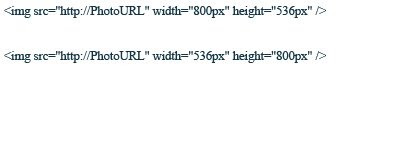 I use the top for horizontal pics and the bottom for vertical pics. You can adjust the sizes to anything you want, but this works with the width I've set up for my blog layout. I keep these html settings saved on my computer and just copy and paste in the one I need. Then just paste in the url that you get from Photo Bucket (or whatever service you use) and replace the url within the quotations.


